


Turn your selfies into dating profile gold
Our AI photographer transforms your everyday photos into polished, scroll-stopping dating profile shots — in minutes, not days.


8 Best AI Tools to Remove Unwanted Objects from Photos
 Ryan ColeMarch 18, 2025
Capturing the perfect shot isn't always easy—sometimes, unwanted objects, people, or distractions sneak into your frame. Luckily, AI-powered object removal tools make it simple to clean up photos without professional editing skills. Whether you're a photographer, e-commerce seller, or social media enthusiast, these AI tools will help you create flawless images in seconds.
Here are the 8 best AI object remover tools to erase distractions and enhance your photos.
1. Fotto AI – The Best AI Object Remover
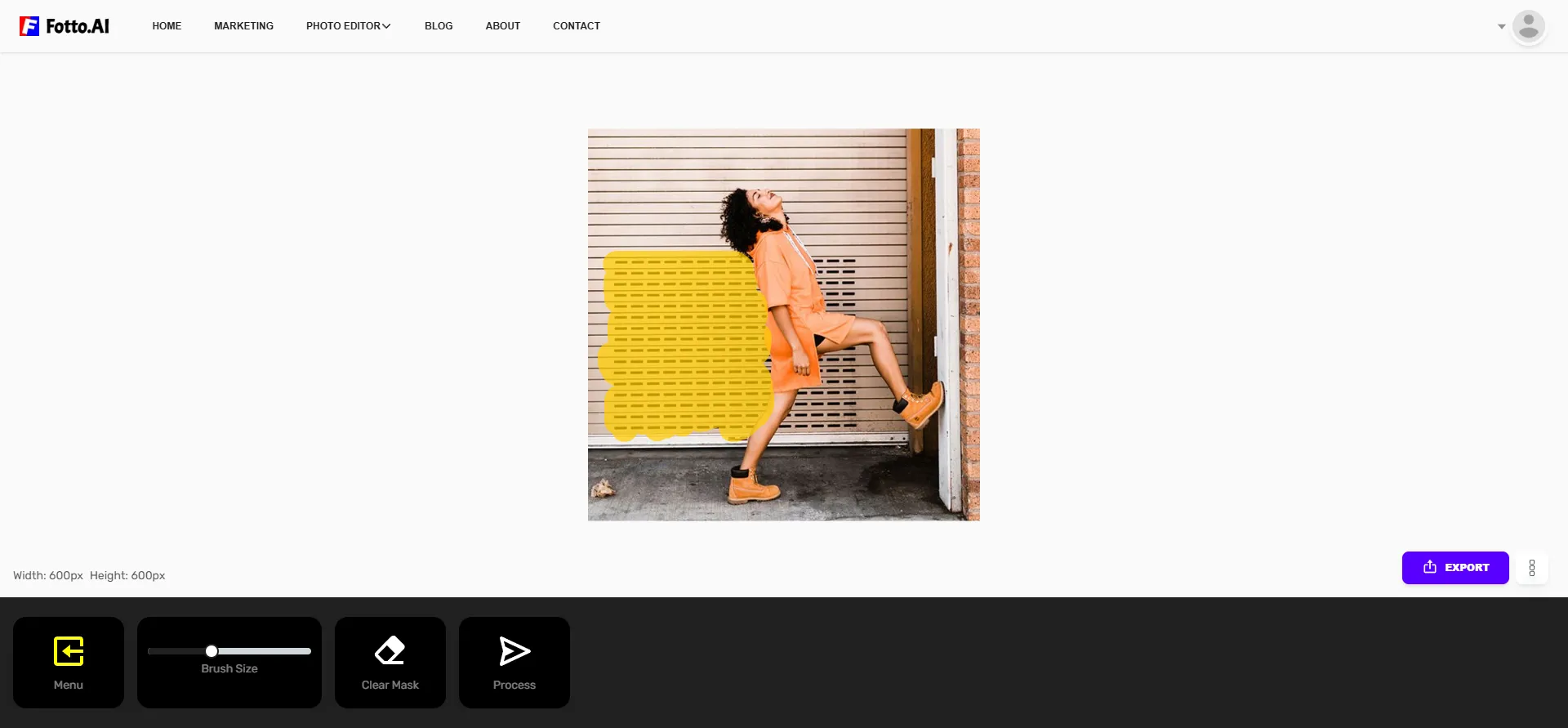
Website: Fotto AI Object Remover
Fotto AI provides a free, fast, and easy way to remove objects from images. Just upload your photo, mark the unwanted element, and let AI seamlessly fill in the background. This tool is perfect for e-commerce, marketing, photography, and social media editing.
Key Features:
- ✔️AI-powered object and background removal
- ✔️One-click editing with no Photoshop skills required
- ✔️Free and instant results
- ✔️Works for product images, portraits, and landscapes
2. Luminar – AI-Powered Photo Editing Software
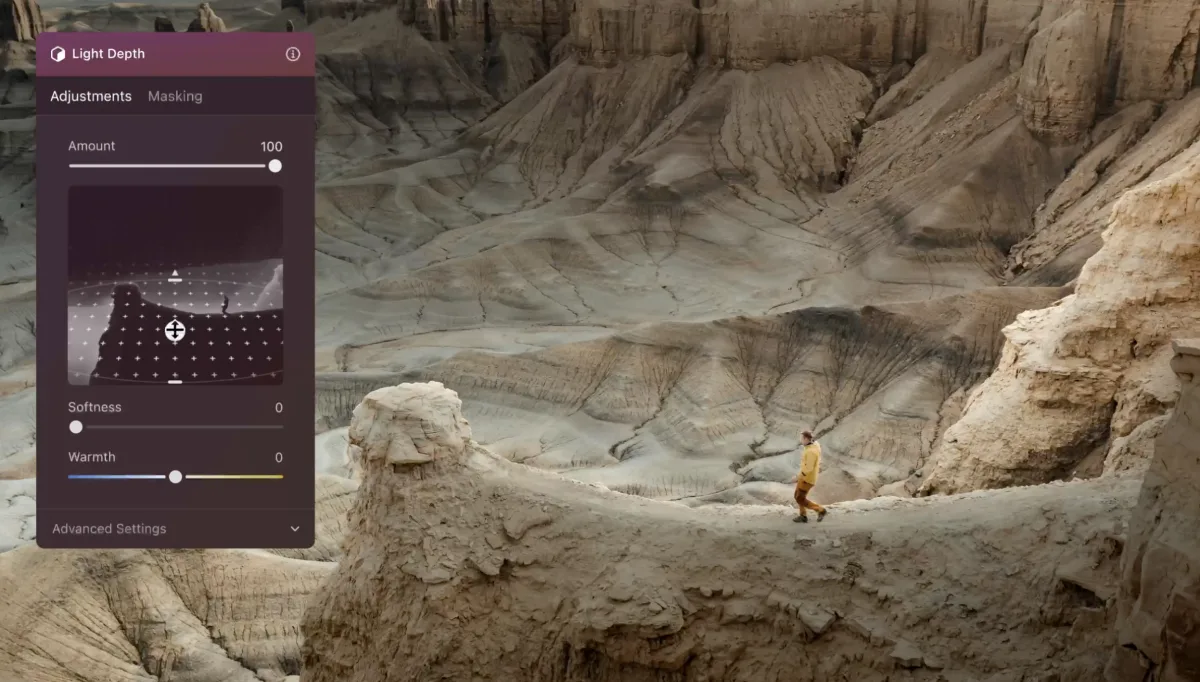
Website: Luminar
Luminar is a full AI-powered photo editor rather than a single-purpose eraser. Its advanced masking lets you isolate exactly the area you want to fix, so removing an object stays a precise edit instead of a rough patch. Everything sits in one integrated ecosystem, so the cleanup happens in the same place as the rest of your edit, with no exporting between apps.
Key Features:
- ✔️Advanced masking for precise, controlled selections
- ✔️Integrated ecosystem covering editing, cleanup, and effects in one workflow
- ✔️AI tools including Background Removal, Sky Replacement, and AI Assistant
3. Remove.bg – AI-Powered Background Remover
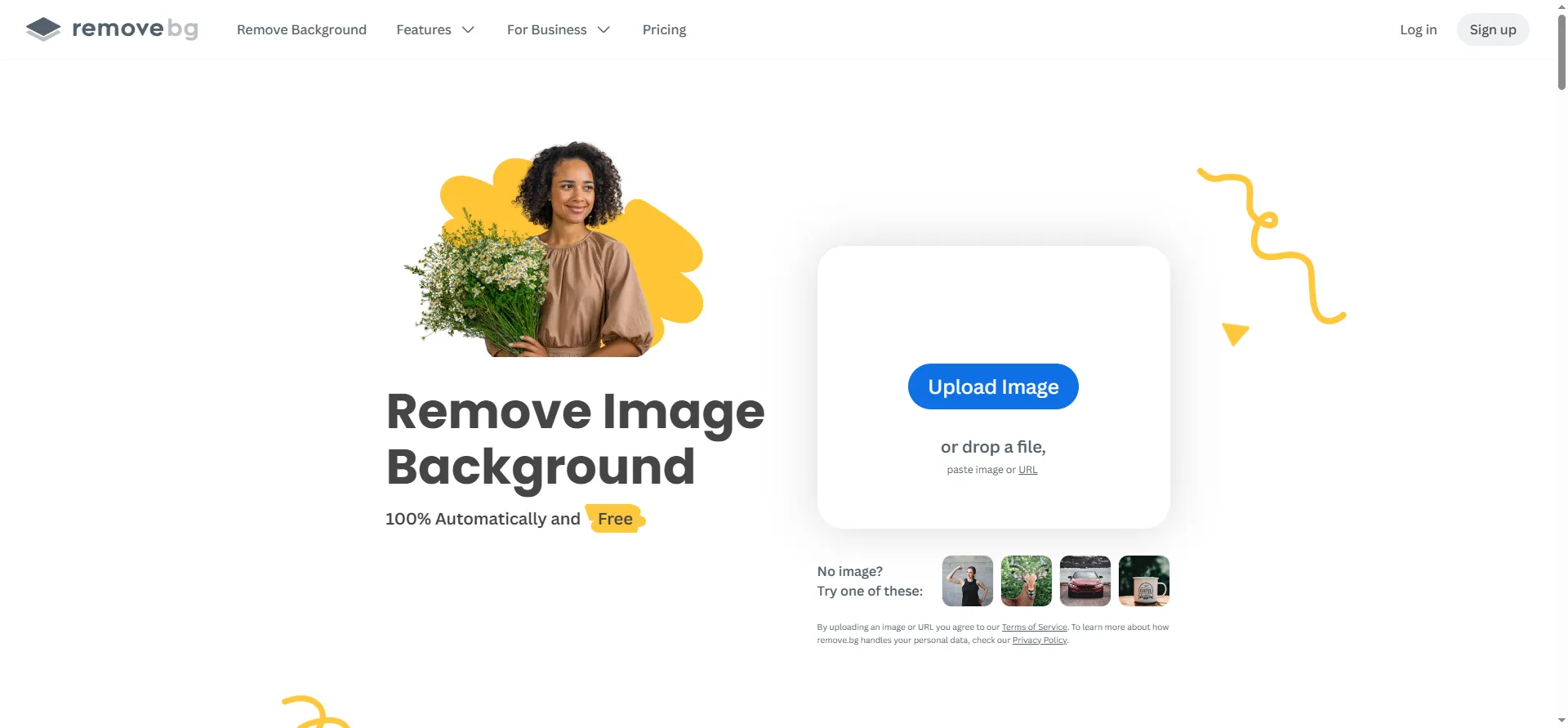
Website: Remove.bg
Although Remove.bg is best known for background removal, it also features an AI object removal tool to clean up images quickly.
Key Features:
- ✔️AI removes objects and backgrounds
- ✔️Fast and automatic processing
- ✔️Supports transparent background export
4. SnapEdit – Free Online Object Remover
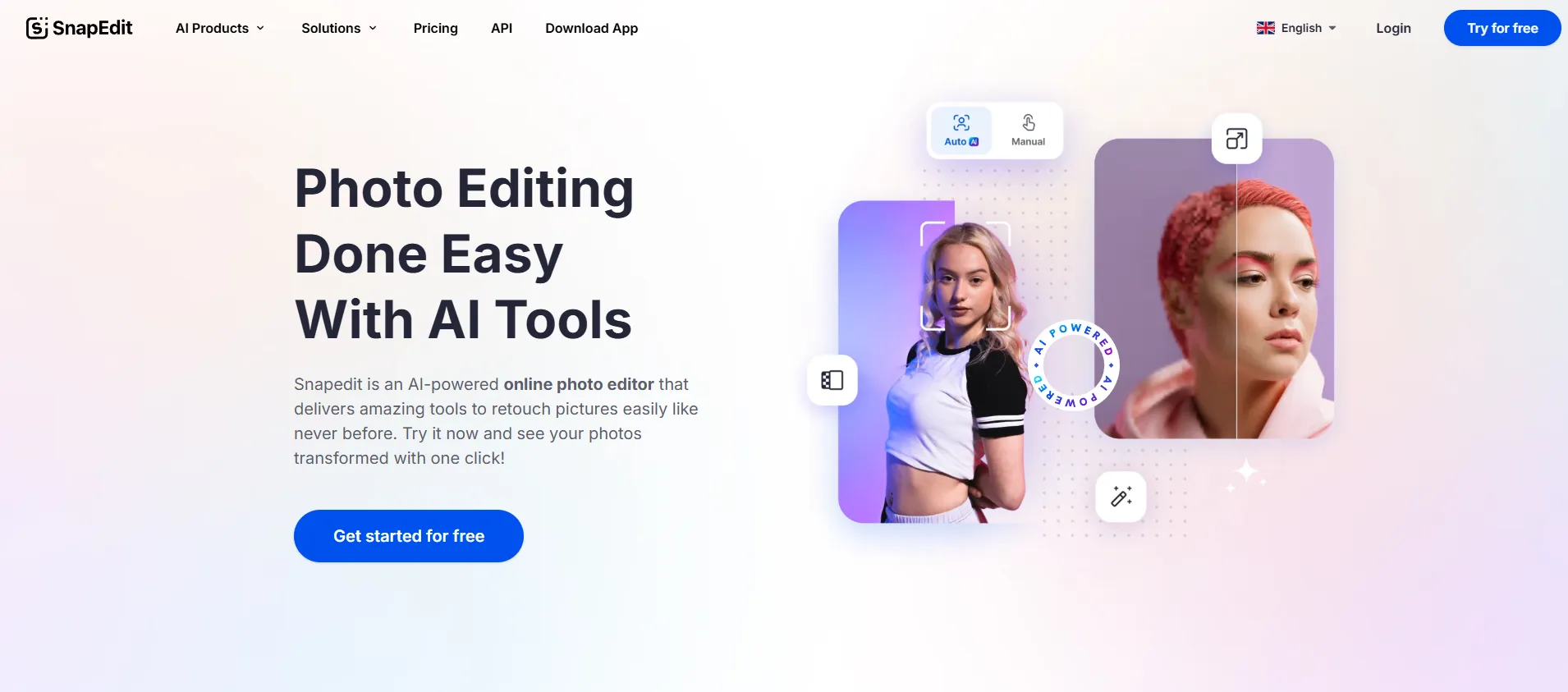
Website: SnapEdit
SnapEdit is an easy-to-use AI-powered web tool that removes objects from photos for free. Its intelligent algorithms detect and erase unwanted elements seamlessly.
Key Features:
- ✔️One-click object removal
- ✔️Works with mobile and desktop browsers
- ✔️High-resolution image processing
5. TouchRetouch – Mobile Object Remover App
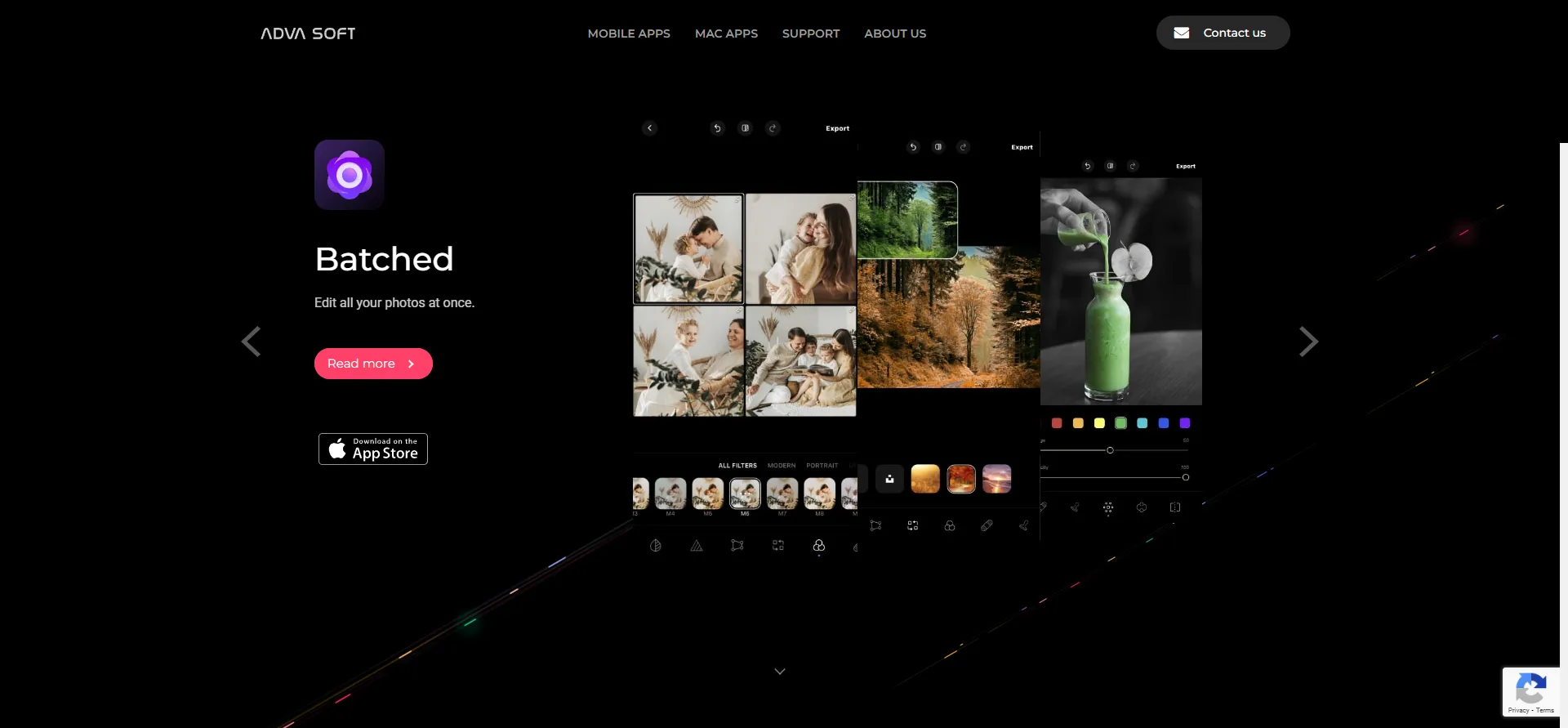
Website: TouchRetouch
For mobile users, TouchRetouch is a powerful app available on iOS and Android. It offers a user-friendly way to remove objects, blemishes, and watermarks.
Key Features:
- ✔️AI-powered object eraser
- ✔️Best for retouching portraits and landscapes
- ✔️Supports mobile editing
6. Cleanup.Pictures – AI-Powered Image Cleanup Tool
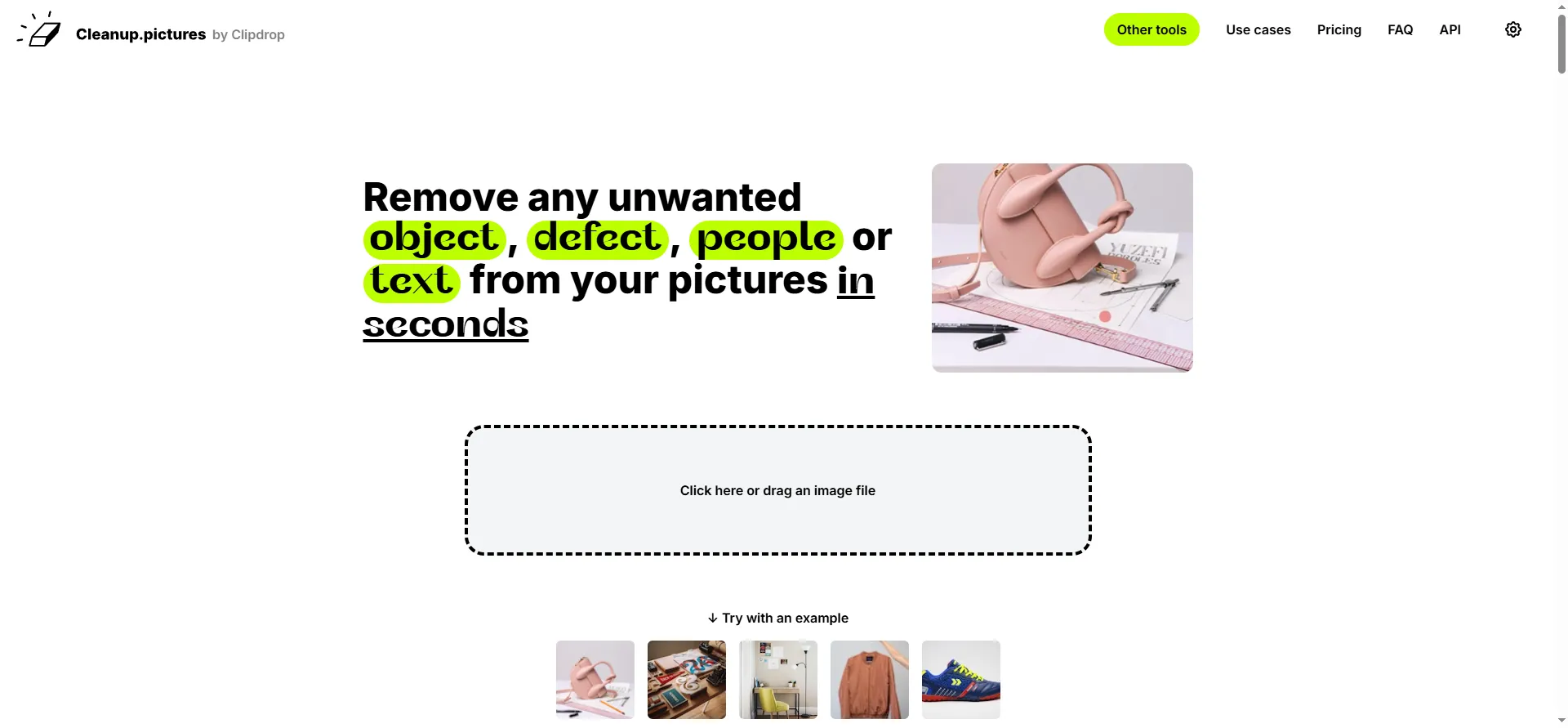
Website: Cleanup.Pictures
Cleanup.Pictures is a free, web-based tool that removes unwanted objects using AI, perfect for quick touch-ups.
Key Features:
-
✔️Erase people, text, and objects
-
✔️Simple drag-and-drop interface
-
✔️Works without software installation
7. Inpaint – AI Object Removal Tool
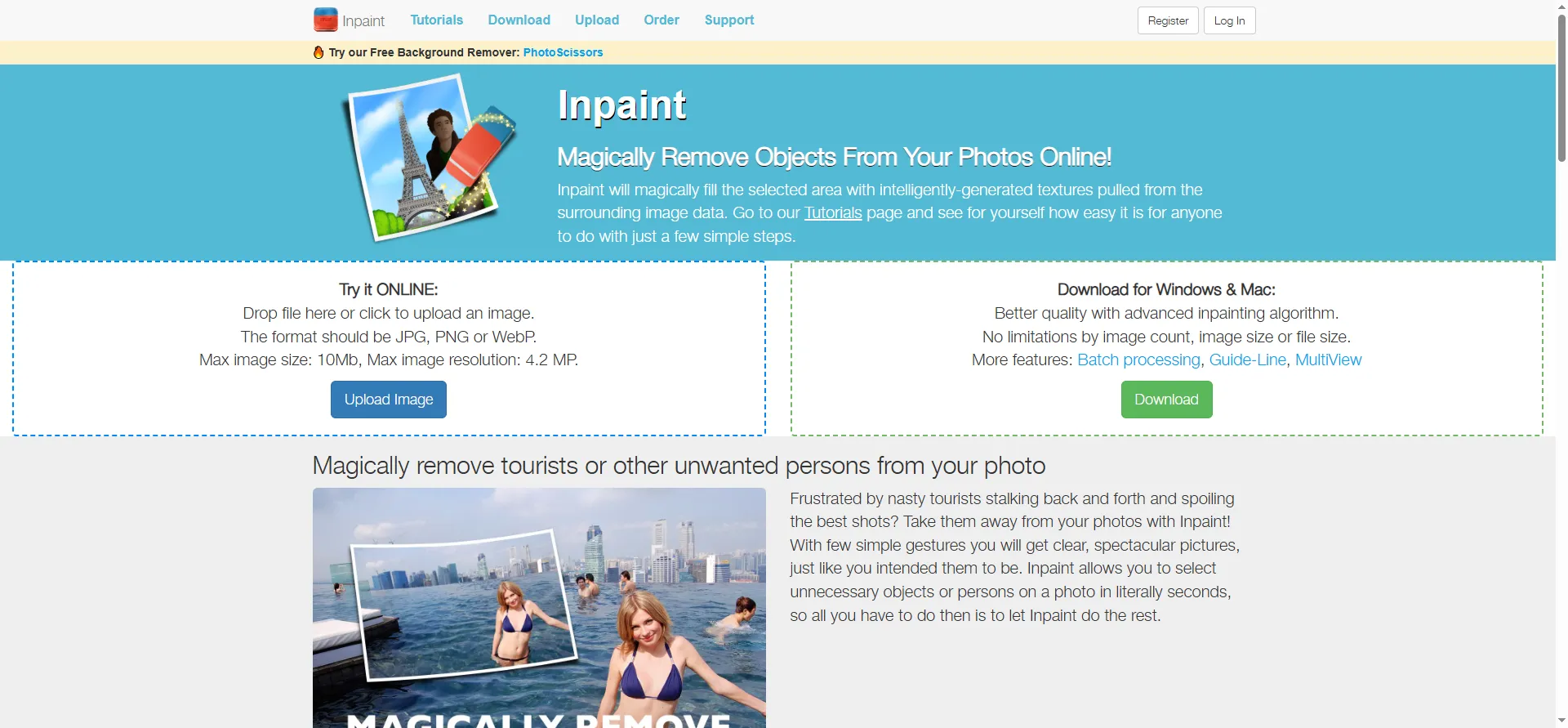
Website: Inpaint
Inpaint is a well-known tool that reconstructs backgrounds when removing objects, making it great for fixing old photos or retouching images.
Key Features:
-
✔️AI-powered background reconstruction
-
✔️Works with old and damaged photos
-
✔️Easy to use for beginners
8. PhotoRoom – AI Object & Background Removal
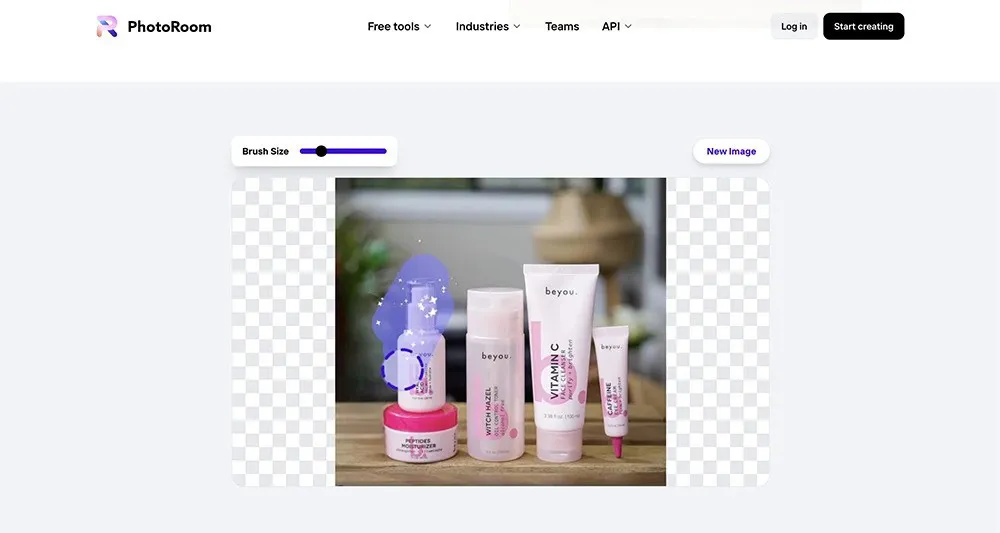
Website: PhotoRoom
PhotoRoom is another great AI tool that not only removes objects but also enhances images for e-commerce and marketing.
Key Features:
-
✔️AI-based object eraser and background remover
-
✔️Optimized for product and social media images
-
✔️Fast and automatic processing
Conclusion
Removing unwanted objects from photos has never been easier with AI-powered tools. Whether you’re a business owner, social media influencer, or photographer, these tools help you achieve clean, distraction-free images effortlessly. Try Fotto AI for a free and fast object remover experience today!
FAQs
1. How do AI object remover tools work?
AI object removal tools analyze the surrounding pixels and intelligently fill in the erased area to make it look natural. They use deep learning to predict the background details.
2. Are these AI tools free to use?
Most tools offer free versions, but some have limitations like watermarking or resolution restrictions. Fotto AI, SnapEdit, and Cleanup.Pictures provide free AI object removal.
3. Which tool is best for e-commerce images?
Fotto AI, Remove.bg, and PhotoRoom are ideal for e-commerce sellers since they remove objects and backgrounds while enhancing product images.
4. Can I use AI tools for professional photography?
Yes! Luminar, TouchRetouch, and Inpaint are excellent choices for professional photographers who need precise editing tools.
5. Do AI object removers work on mobile?
Yes, apps like TouchRetouch and PhotoRoom provide mobile-friendly AI object removal for quick edits on the go.
Keep Reading
Easily remove unwanted photo backgrounds with Fotto.ai. Enhance product shots, create stunning edits fast, no Photoshop needed.
Get more matches by fixing what decides every swipe: your photos. How to shoot, pick, and test AI dating photos that still look like you.
Confidence reads visually. How posture, body angle, hands, eyes and a real smile make your dating photos look like you on a good day.
Nine dating profile picture ideas that pop on swipe apps, the composition rules behind them, and a 20-minute plan to shoot them at home.
A realistic 7-day sprint to lift your match rate without touching your photos. Day-by-day plan: bio audit, rewrite, opener templates, swipe rule, peak-time sessions, conversation pivots, and how to measure and lock in the wins.
Some AI dating photos get spotted instantly, others pass. Here is what gives them away and how to pick ones that hold up on a first date.
A slot-by-slot guide to the Hinge 6-photo carousel: what each slot should do, the best order to run them in, and the mistakes that cost matches.
How much is Match.com, and is it free? What the free plan really does, real monthly costs, whether it is legit and worth it, and how to cancel.